
There are a lot of tools that claim to turn a PDF into MusicXML, and they do not all solve the same problem. Some read a PDF that came out of Sibelius or Dorico almost perfectly and cannot handle a scan. Others claim to read a phone photo of a jazz chart and return a conversion with errors in nearly every bar. If you pick by name or by price, you can easily end up paying for a tool that cannot read your file at all.
This guide sorts them by the one question that matters first: what kind of PDF do you have? From there it compares what each tool costs, whether it exports MusicXML at all (some only do on a paid tier), and how much cleanup to expect.
How to convert a PDF to MusicXML
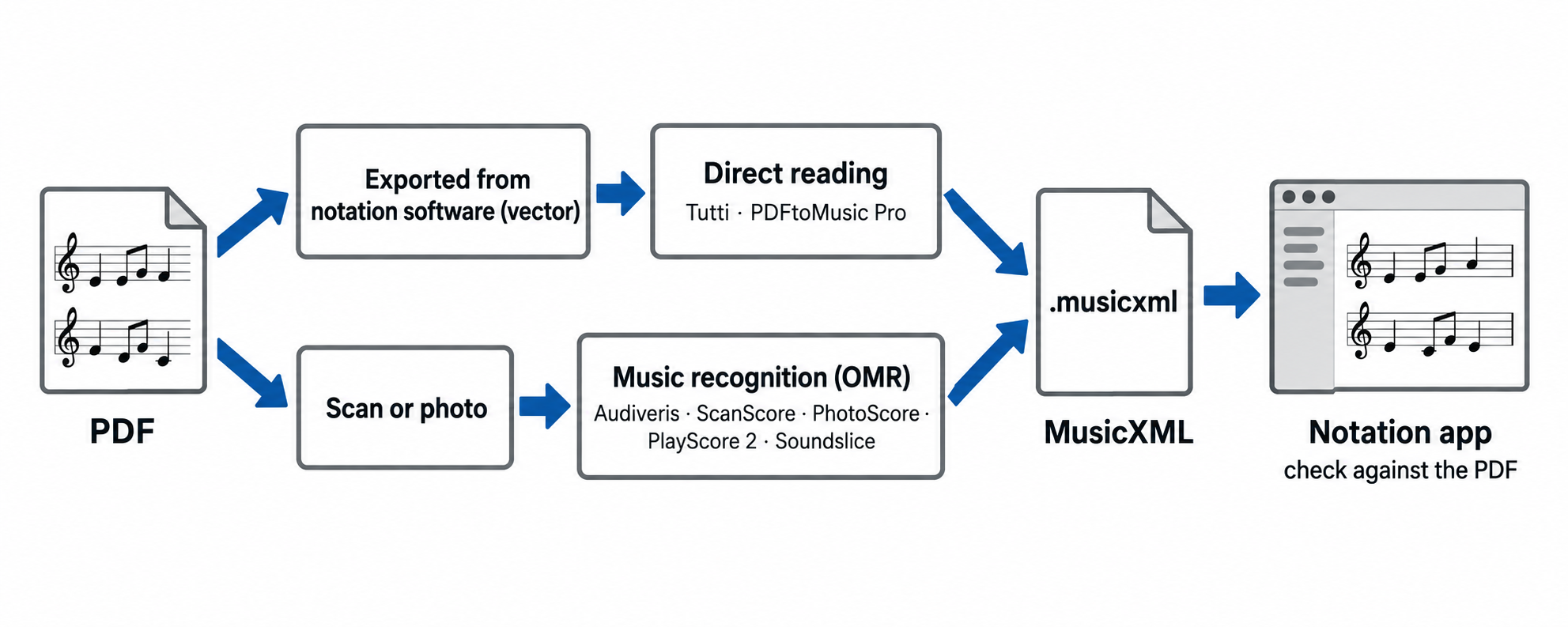
- Find out which kind of PDF you have. One exported from notation software (Sibelius, Dorico, MuseScore, Finale…) is vector; a scan or photo is a flat picture of the page. Upload it to Tutti and its free check tells you.
- Vector: use a tool that reads it directly. Tutti and PDFtoMusic Pro read the notation itself instead of guessing from pixels, which makes them the most accurate option.
- Scan or photo: use an optical music recognition (OMR) tool. OMR works the notes out from the image, so expect mistakes, more on poor scans and complicated music.
- Open the MusicXML and check it against the PDF. The page will look different: MusicXML records what the music is, and your notation software decides line breaks and spacing.
The quick pick
Prices and limits below are as of October 3, 2026.
If your PDF was exported from notation software (vector): go for a tool that reads it directly. This is the accurate route.
| Tool | Best for | Platform | Price |
|---|---|---|---|
| Tutti | Checking a PDF for free and converting it in the browser | Web | Free during beta: 10 pages, 10 more after a short questionnaire |
| PDFtoMusic Pro | Converting on your own computer, offline | Windows, Mac, Linux | $199, one-time |
If your PDF is a scan or a photo: you need optical music recognition (OMR). Results vary with the quality of the image and how complicated the music is.
| Tool | Best for | Platform | Price |
|---|---|---|---|
| Audiveris | Simple, clean scans, for free | Windows, Mac, Linux | Free |
| ScanScore | Clean scans with an editor built in | Windows, Mac | From $9 per year (Melody) to $79 per year (Professional) |
| PhotoScore | Scans, if you already use Sibelius | Windows, Mac | $249 (Ultimate) |
| PlayScore 2 | Scans and images | iOS, Android, Windows | Subscription; MusicXML export needs Professional ($6.99 per month on the US App Store) |
| Soundslice | Scanning plus practice and sharing | Web | Free: 2 trial scans a month, no MusicXML export. Plus: $5 per month (100 pages) |
Three questions before you pick a tool
Is your PDF exported from software, or a scan? This decides everything. A tool made for software-exported PDFs will not read a scan, and the reverse.
Do you need the MusicXML file, or just a look? Several tools open your PDF for free but only export MusicXML on a paid tier. That is the point where "free" quietly stops being true.
How much time are you willing to spend proofreading? Recognition from a scan always leaves some mistakes. Is the score complicated enough that there will be many? And can you accept spending a good while proofreading and correcting them?
Converters for PDFs exported from notation software
Tutti
Best for: PDFs exported from notation software, converted in the browser.
Tutti reads the music directly from the PDF, so there is no image recognition step and no guessing. The whole flow is in the browser:
- Choose your PDF (or drop a folder) and click Check compatibility for free. The check runs on your computer and nothing is uploaded until you choose to.
- If it says the score is supported, choose a continuous range of pages and see the page cost.
- Click Convert pages, then Download MusicXML.
You don't need to know the source software; the check tells you. Checks and failed conversions don't use your free pages, and finished results stay in Your scores for re-download.
Tutti is in beta, so the list of notation programs it reads is growing; the free check tells you whether your file works today.
- Pros: reads the music data directly, so notes come through accurately; tells you up front if it can't help; nothing to install
- Cons: beta, so some PDFs are not supported yet. Scans, photos and handwritten pages are out of scope, because there is no music data in them to read. No paid plan yet.
- Price: free during the beta. New accounts get 10 pages, and answering a short questionnaire gives you 10 more. Paid options are not live yet. Check your PDF.
PDFtoMusic Pro
Best for: PDFs exported from any notation software, converted offline on your own computer.
PDFtoMusic Pro, from Myriad, does the same kind of direct reading for a wide range of software. Forum users who work with exported PDFs often point to it first, and note that it cannot read scans at all. It runs on your computer, so the PDF never leaves it. MusicXML export is part of the Pro edition; the standard edition does not have it.
- Pros: reads exported PDFs directly and accurately; works offline; handles PDFs from many programs
- Cons: the price is high at $199; useless for scans and photos; desktop only
- Price: $199, one-time. The plain PDFtoMusic edition costs $65 but has no MusicXML export.
Converters for scans and photos
These all work from pixels. They make judgments about what each mark is, so mistakes are normal, and the more complicated the page, the more of them there are.
Audiveris
Best for: simple, clean scans, if you want free and don't mind cleaning up.
Audiveris is open-source music recognition software that reads the notes out of a scanned page. It is free and exports MusicXML 4.0. It is also the engine reportedly behind MuseScore's own PDF import, so you can expect similar mistakes on messy input.
Be honest with yourself about what to expect. Audiveris is fine on a simple, clean page: a lead sheet, a piano piece with a few voices, a hymn. Its quality is not stable, though, and it drops sharply on complicated scores: dense orchestral pages, many staves, small print, tuplets, crowded markings, or a slightly skewed or noisy scan. On those pages the output can have so many wrong notes and broken rhythms that fixing it takes longer than typing the music out. A clean 300 dpi scan gives it the best chance.
- Pros: free; exports MusicXML; handles simple scans well
- Cons: inconsistent quality; poor on complex scores; you set it up and learn it yourself; always needs proofreading
- Price: free and open source. The latest release is 5.11 (July 2026), with installers for Windows, Mac and Linux.
ScanScore
Best for: clean scans when you want a better editor than a free tool.
ScanScore is a desktop app built around scanning and correcting. You import the PDF or image, fix what it misread inside the app, and export MusicXML. Its own MuseScore guide describes exactly that sequence.
- Pros: correction happens inside the tool, next to the page image
- Cons: paid; recognition from pixels, so proofreading is still part of the job
- Price: ScanScore 3 is sold as one-year licences, from $9 per year (Melody) through $39 (Ensemble) to $79 (Professional). All paid tiers export MusicXML; the free trial limits export. Melody covers simple scores with one staff per system, so complicated scores need Professional.
PhotoScore
Best for: scans, especially if you already use Sibelius.
PhotoScore, from Neuratron, is a long-standing scanning tool, sold bundled with NotateMe. The Ultimate edition handles complex notation and large scores; the Lite edition is limited to 20 pages and 12 staves per page. The vendor lists MusicXML export for both.
- Pros: established; scan-focused; sends scores straight to Sibelius
- Cons: the highest price in the scan group; recognition from pixels
- Price: $249 for Ultimate; $59 for Lite (2020 editions, US store).
PlayScore 2
Best for: photographing a page with your phone.
PlayScore 2 is an app for iPhone, iPad, Android and Windows that reads a photo or PDF, plays it back, and can export MusicXML. One Dorico forum user, who exports its MusicXML into Dorico, wrote in May 2026 that on PDF notation "it mostly gets 95% right". That is one person's impression, not a measurement, but it fits the general advice: good, and still needs proofreading.
- Pros: works from your phone; hear the result immediately
- Cons: small screen for correction; recognition from images; MusicXML export needs the higher plan
- Price: subscription, billed monthly or yearly through your app store. The Productivity plan scans multi-page, multi-staff music; the Professional plan adds PDF import and MusicXML export. On the US App Store, Professional is $6.99 per month or $59.99 per year; Prices differ by store and region, so check the Store button inside the app.
Soundslice
Best for: people who also want to practise or share along with the score.
Soundslice is a web platform for notation, with a scanning feature that turns a PDF or photo into an editable score. Forum users report good results. The free plan allows 2 trial scans a month, one page and 32 bars each, and does not export MusicXML; the Plus plan raises the limit to 100 pages a month and exports MusicXML.
- Pros: web-based; notation, practice and sharing in one place
- Cons: a platform to sign up for rather than a one-off converter; scanning is capped by plan
- Price: free for 2 trial scans a month (no MusicXML export); Plus is $5 per month or $50 per year, for 100 pages a month.
Convert one PDF from start to finish
To see what a direct-reading conversion looks like on a real score, we ran page 4 of Xiaoyang Ni's arrangement of the "Ode to Joy" finale of Beethoven's Ninth (IMSLP, CC BY 4.0) through Tutti. The PDF was exported from Sibelius 8.3; the page has 16 bars in four parts, with dynamics, long slurs and a clef change in the piano.
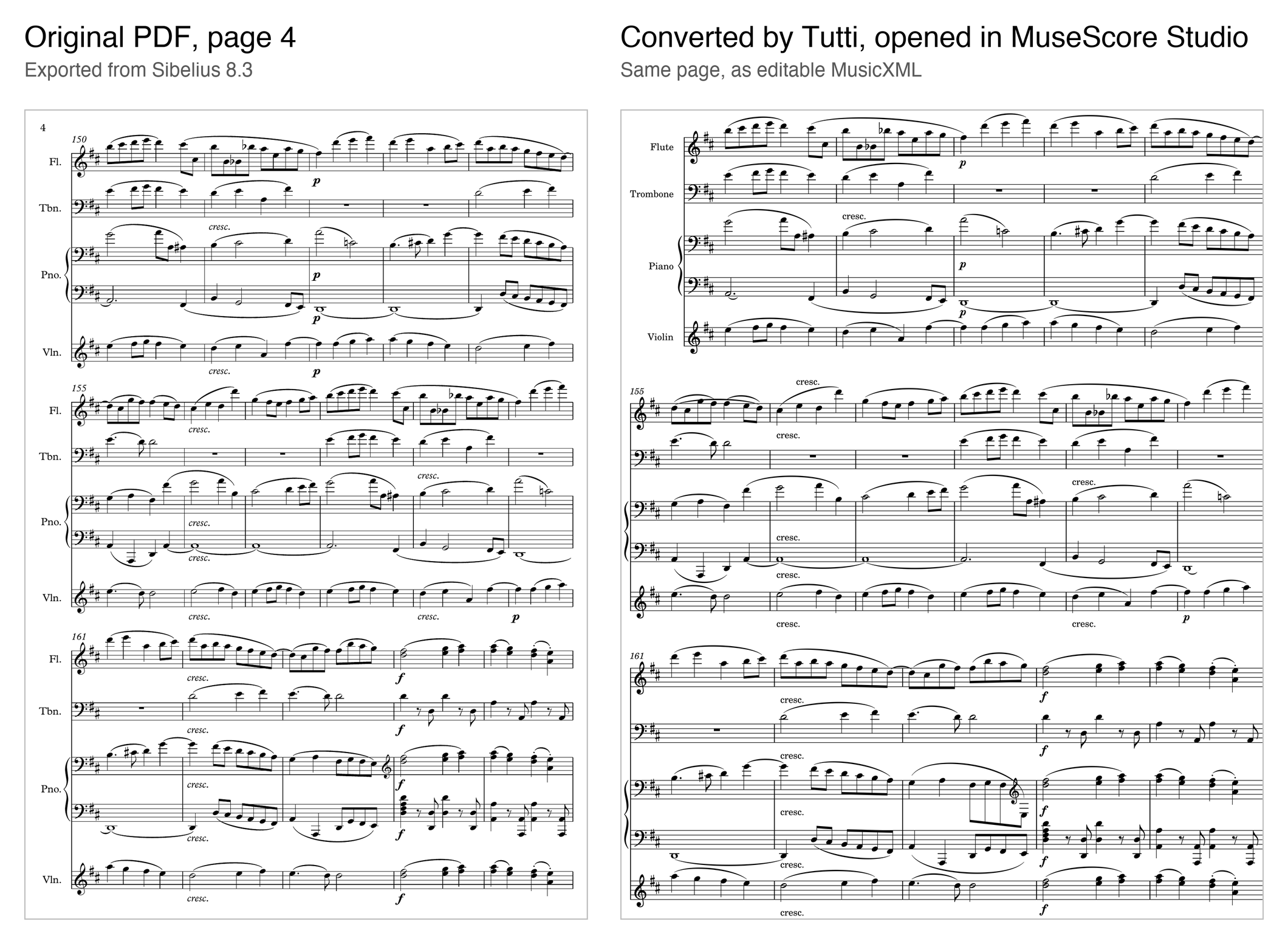
Beethoven, Symphony No. 9, Op. 125, IV ("Ode to Joy"), arranged by Xiaoyang Ni (2017). Source: IMSLP file #484500. CC BY 4.0. Left: cropped from the original PDF. Right: converted by Tutti and re-typeset in MuseScore Studio (modified).
Which should you try first?
- Any PDF you aren't sure about: run it through the free check at tutti-studio.com first. It costs nothing, and you learn within a moment whether the direct-reading route works for you.
- Software-exported (vector) PDF: use a tool that reads it directly: Tutti while it is free, or PDFtoMusic Pro if you want it offline and will pay $199. You will spend the least time correcting.
- Simple, clean scan, free: Audiveris.
- Complicated scan: ScanScore or PhotoScore, and plan on proofreading. Audiveris is a gamble here.
- Photo on your phone: PlayScore 2.
- Not sure what you have: try the free route first. If it says the file isn't supported, you have a scan or a messy file, and the recognition tools are the next step.
Back to the PDF you started with
The mistake in the opening, paying for a converter that can't read your file, is easy to avoid once you know what you are holding. A PDF exported from notation software can be read directly, which is the accurate route, and for that you have Tutti (free during the beta) or PDFtoMusic Pro. A scan needs recognition, and then the price, and how complicated your music is, decide which tool to try. Whichever you pick, open the MusicXML in your notation software and compare it with the page before you rely on it.
If you still aren't sure what you have, run the PDF through the free check at tutti-studio.com. It takes a moment, uses none of your pages, and tells you which half of this guide to read.