
Someone sends you a PDF of a choir arrangement and asks for it a whole step lower by tomorrow. Or you inherit a band part that exists only as a file somebody exported years ago and never shared the source for. You open MuseScore Studio, and the PDF is just a picture of music: you can't click a note, you can't transpose it, you can't fix the one wrong chord. The music is right there on the screen, and none of it will move.
MuseScore Studio does have a File → Import PDF… command, and it is worth knowing what it does. This guide first looks at what that command does, then shows a more dependable route for PDFs exported from notation software.
Using MuseScore Studio's own "Import PDF"
In the File menu there is an Import PDF… entry. It does not convert anything on your computer. It opens a page on musescore.com, where you sign in and upload the PDF. The converted score is saved in the cloud, under your MuseScore account, and you choose to open it in MuseScore Studio. MuseScore Studio has to be signed in to the same account to open it, and because the score lives online, File → Save saves it online too (MuseScore Studio says it is saving online).
The conversion uses optical music recognition (OMR), an image-based recognition technique. For a clean, simple page that can go well. With bad luck, you get a file full of wrong notes and broken rhythms, which can take longer to fix than retyping the music.
However, if your PDF was exported directly from notation software rather than scanned, there is a better way than pixel-based recognition: read the glyphs and vector data built into the PDF itself. Reading that internal data is not guessing; it is an exact conversion. That is how Tutti works.
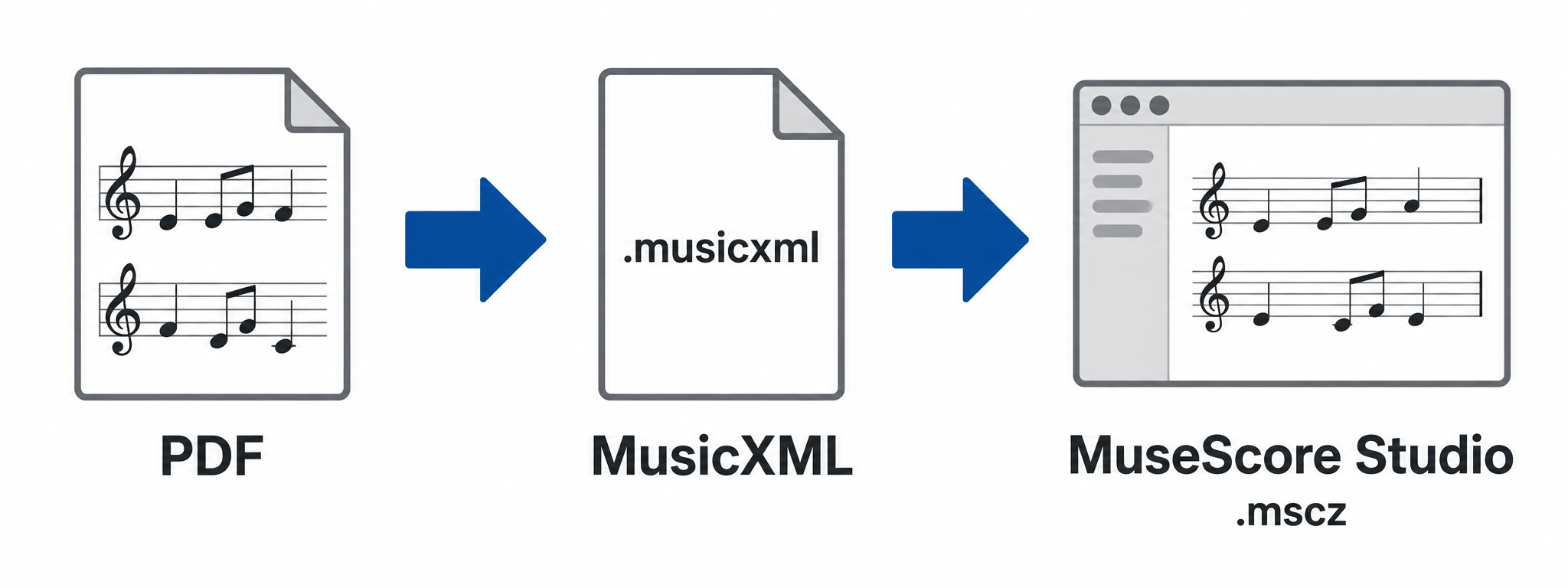
So the route this guide recommends is to convert the PDF to MusicXML with Tutti, open that in MuseScore Studio, and save it as an .mscz file you can keep working on.
MusicXML is the open format notation programs use to trade scores with each other. .mscz is MuseScore Studio's own project format. You need the first one to get in, and you keep the second.
Is your PDF exported from software, or a scan?
There are two very different kinds of score PDF.
Exported from notation software. Someone made the score in Sibelius, Dorico, MuseScore or Finale and chose "Export as PDF". The notation is stored inside the file as font characters and vector drawing commands, so the music is all there in a form a program can read.
A scan or a photo. Someone put a printed page on a scanner or took a picture of it. The file holds one big image of a page, and a program has to recognise the music from pixels.
Zoom in and look: if the note-head edges turn blurry, it is a scan or an image.
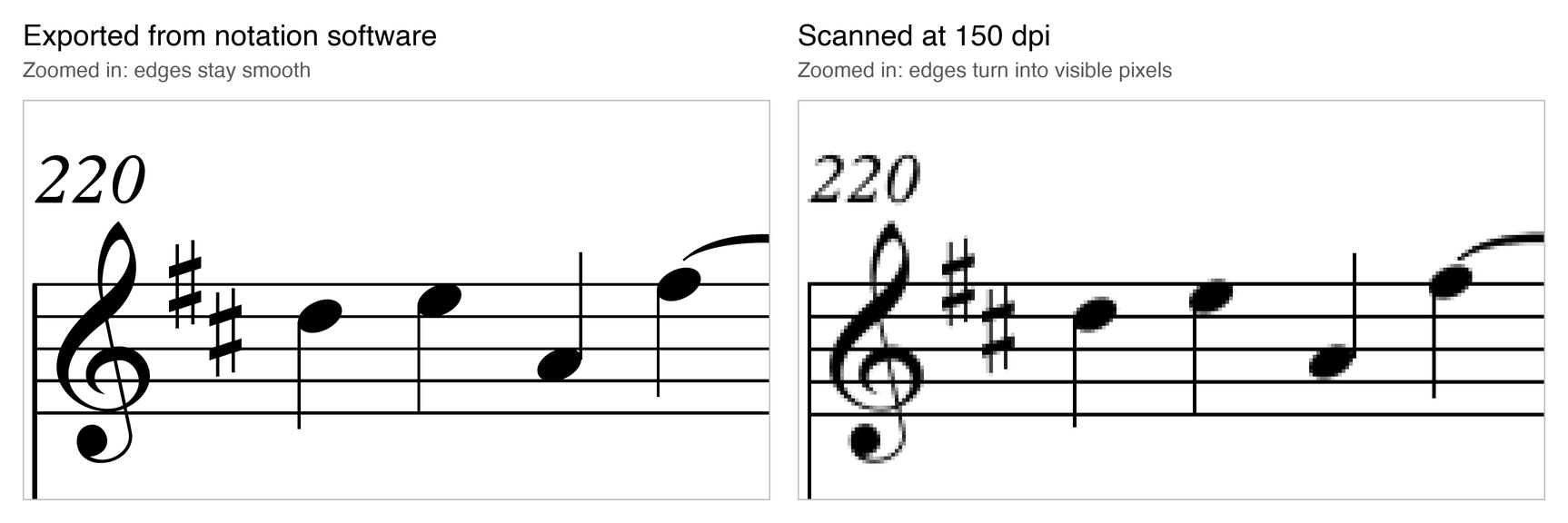
Beethoven, Symphony No. 9, Op. 125, IV ("Ode to Joy"), arranged by Xiaoyang Ni (2017). Source: IMSLP file #484500. CC BY 4.0. Cropped from the original PDF; the scan is our own 150 dpi rendering of the original PDF.
A better way, though, is to let Tutti judge.
Step 1: Choose your folder and run the free check
Open tutti-studio.com, sign in, and drop the folder that contains your PDFs onto the page, or click Upload a PDF to pick a single file. Tutti checks every PDF in a folder at once.
This is the easiest way to find out whether a PDF will work, because you don't have to judge it yourself. The compatibility check runs on your own computer, and this step uploads no files. Tick the box to confirm you have permission to upload the score and agree to the Terms and Privacy Policy, then click Check compatibility for free.
Checks don't use any of your free pages.
The score used in this guide is Xiaoyang Ni's arrangement of the "Ode to Joy" finale of Beethoven's Ninth Symphony. It was engraved in Sibelius 8.3 and exported straight to PDF. We converted page 4 of its 12: 16 bars in four parts (flute, trombone, piano and violin), with dynamics, long slurs, grace-note figures and a clef change in the piano.
If you see "This score is supported.", congratulations: continue to step 2.
If you see "We can't convert this PDF.", it is typically a scan, a photo, a handwritten page, or a file Tutti doesn't read yet. No pages are used; see PDF to MusicXML: Best Free and Paid Converters in 2026 for tools that can handle your kind of PDF.
Step 2: Choose pages and convert
For a supported score you pick a continuous range of pages, from page X to page Y, and Tutti shows how many pages the conversion will cost. Tutti is in beta and offers a free trial.
Click Convert pages, and wait while it works. When it finishes you will see Your MusicXML is ready.
Click Download MusicXML.
Your result stays in Your scores, so you can download it again later without using more pages.
Step 3: Open the MusicXML file in MuseScore Studio
In MuseScore Studio, choose File → Open… and select the .musicxml or .mxl file. The score appears with the staves, key signatures and markings that came through the conversion.
If the layout looks different from your PDF, that is expected. A PDF freezes one particular layout. MusicXML only says what the music is, and MuseScore Studio typesets it again in its own way, so line breaks and spacing change. What matters is whether the music is right. The same file opens in Sibelius and Dorico too, if that is where you work.
And there it is. Voilà! A PDF you could only look at is now a score you can click, play back and edit.
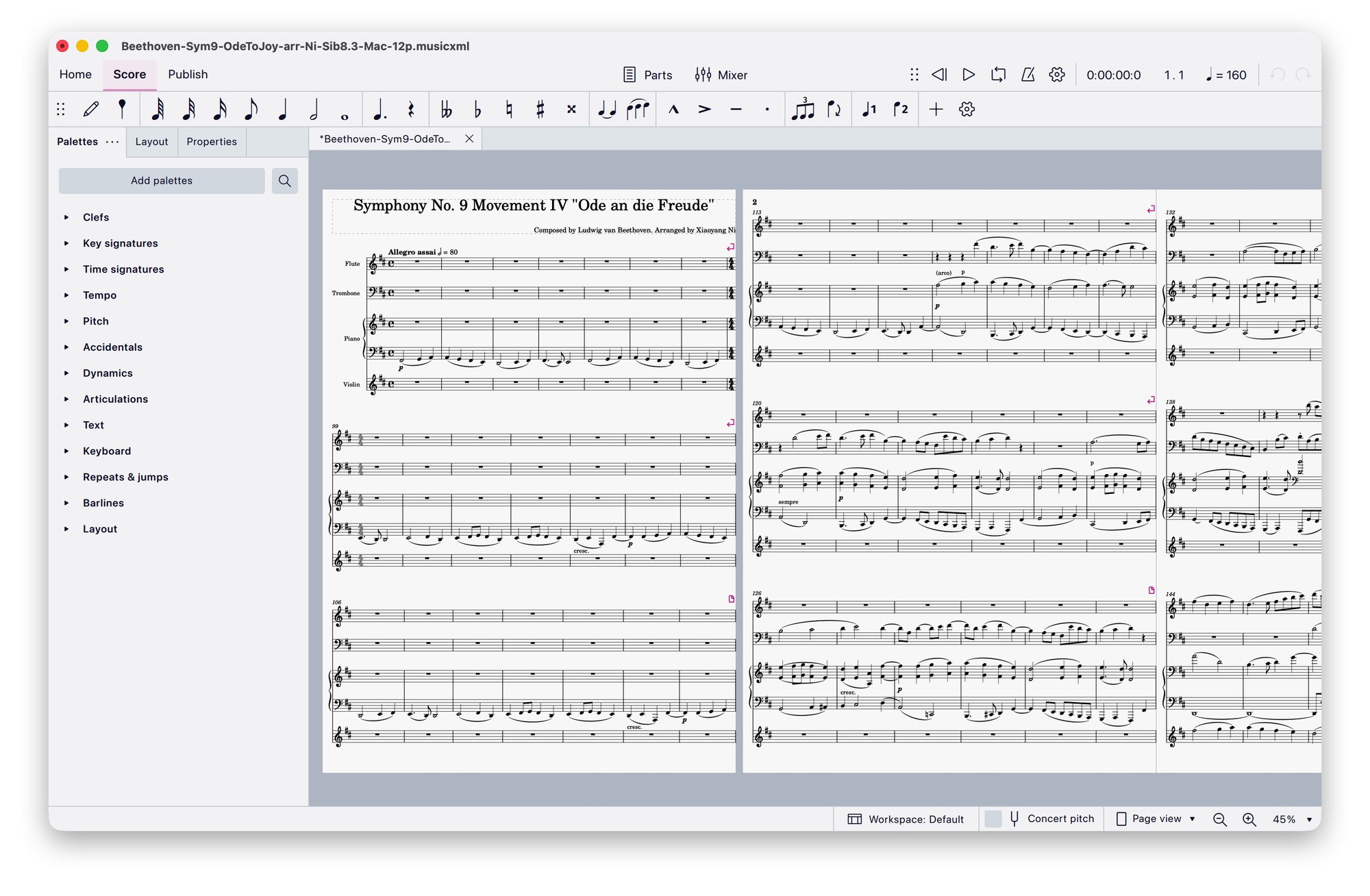
Beethoven, Symphony No. 9, Op. 125, IV ("Ode to Joy"), arranged by Xiaoyang Ni (2017). Source: IMSLP file #484500. CC BY 4.0. Converted by Tutti and opened in MuseScore Studio (modified).
Step 4: Check it against the PDF
Put the PDF on one side of the screen and the score on the other. Mainly check:
- notes and rhythm, in a few bars from each section
- which instruments appear, and in what order
- key signatures, time signatures and tempo marks
- dynamics, slurs and articulations
- repeats, rehearsal marks and text
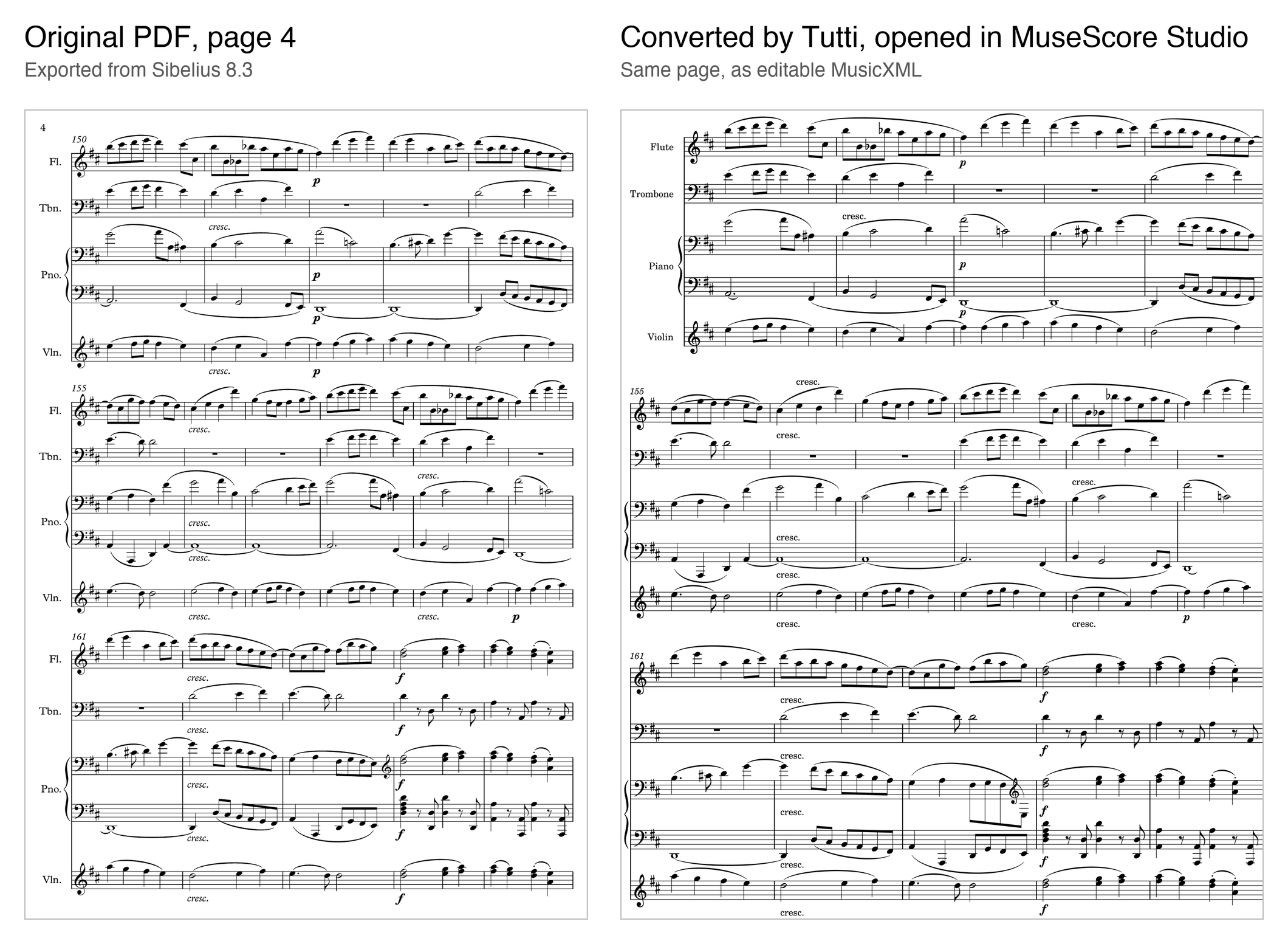
Beethoven, Symphony No. 9, Op. 125, IV ("Ode to Joy"), arranged by Xiaoyang Ni (2017). Source: IMSLP file #484500. CC BY 4.0. Left: cropped from the original PDF. Right: converted by Tutti and re-typeset in MuseScore Studio (modified).
Step 5: Save it as an MSCZ file
A freshly opened MusicXML file is not yet a MuseScore project. Save it:
- Choose File → Save as….
- MuseScore Studio may ask How would you like to save? If it does, choose Save to computer to keep a local
.msczfile. Name it, and make sure the format is MuseScore's own (.mscz). - Close the score, then reopen the
.msczto confirm everything is there.
Done! From now on, work in the .mscz. It keeps everything MuseScore knows about the score, including playback and your edits. Keep the MusicXML as a spare copy of the original conversion.
Try it yourself
Take the choir arrangement due tomorrow: check it, convert it, open the MusicXML in MuseScore Studio and save it as an .mscz. After that it is an ordinary MuseScore score: transpose it down a step, fix the wrong chord, send the new version.
Ready to try? Choose your folder at tutti-studio.com and run the free check.